Frequency Separation in Photoshop: The Complete Guide to Professional Retouching

Frequency Separation in Photoshop: The Complete Guide to Professional Retouching

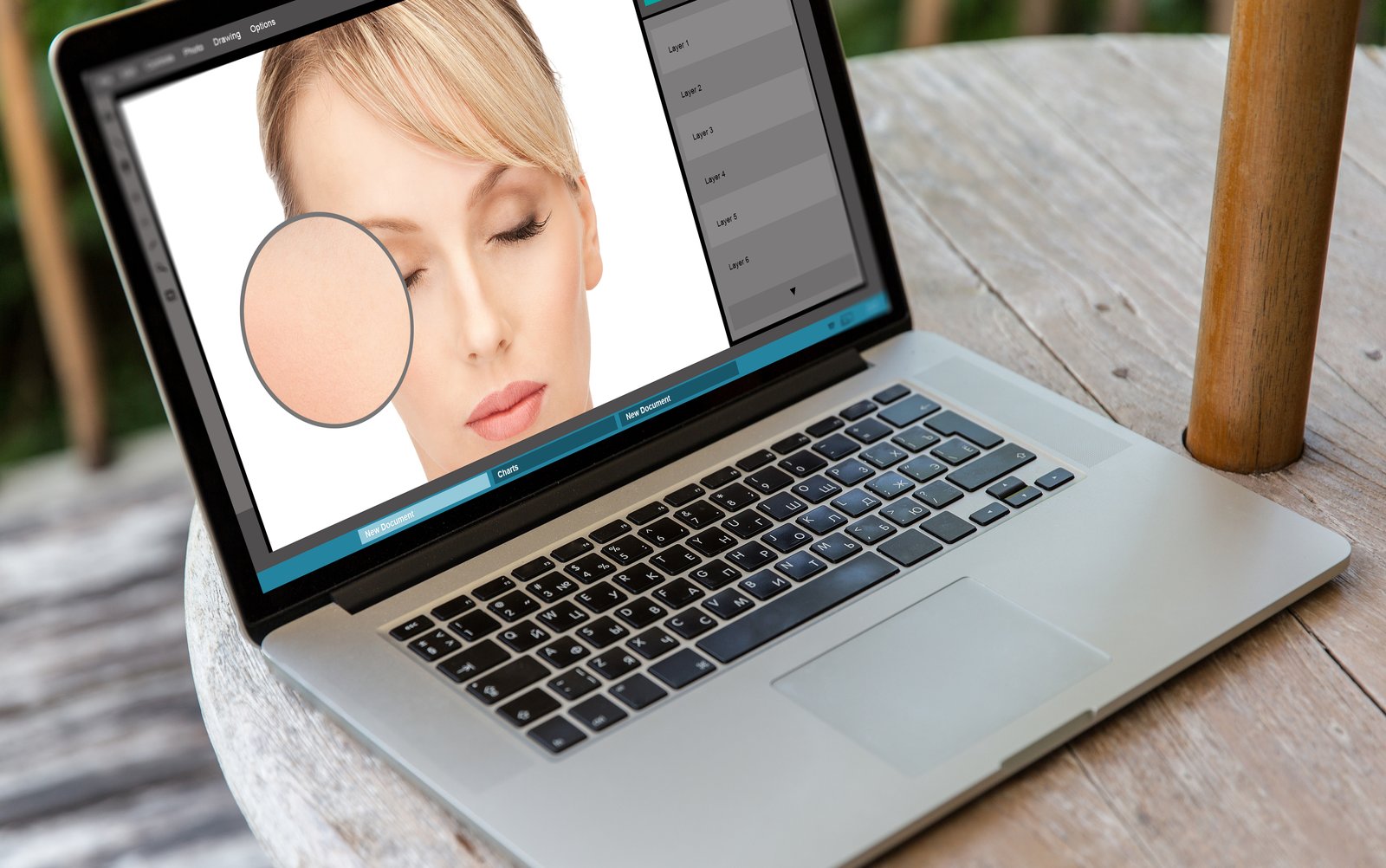
Frequency Separation in Photoshop: The Complete Guide to Professional Retouching When I first learned frequency separation, my retouching work transformed completely. This technique lets you separate texture from color, giving you surgical control over your edits. Instead of touching every aspect of an image at once, you work on two layers independently—one for detail, one for tone and color. It’s non-destructive, reversible, and produces results that look natural. I’ll walk you through exactly how I set this up and use it on every portrait I retouch.

Dodge and Burn in Photoshop: Master Selective Lightening and Darkening

Dodge and Burn in Photoshop: Master Selective Lightening and Darkening

Dodge and Burn in Photoshop: Master Selective Lightening and Darkening When I first started retouching portraits, I thought dodge and burn were just basic tools for quick fixes. I was wrong. These tools, when used intentionally, become your secret weapon for adding dimension, enhancing contrast, and guiding the viewer’s eye exactly where you want it to go. In this article, I’ll walk you through everything you need to know to use dodge and burn effectively—from the fundamentals to professional techniques that will elevate your retouching work.

Dodge and Burn in Photoshop: Master Light Control for Professional Retouching

Dodge and Burn in Photoshop: Master Light Control for Professional Retouching

Dodge and Burn in Photoshop: Master Light Control for Professional Retouching When I first learned dodge and burn, I thought they were advanced techniques reserved for professionals with years of experience. I was wrong. These tools are straightforward once you understand what they do and how to apply them correctly. Today, I’ll show you exactly how to use them to enhance your images with precision and control. What Are Dodge and Burn?

Dodge and Burn in Photoshop: Control Light and Shadow Like a Pro

Dodge and Burn in Photoshop: Control Light and Shadow Like a Pro

Dodge and Burn in Photoshop: Control Light and Shadow Like a Pro I use dodge and burn almost every time I retouch a photograph. These two tools give me surgical control over light and shadow, letting me sculpt dimension into flat areas, draw attention where I want it, and fix lighting problems that seem impossible to solve any other way. If you’re new to these tools, I’ll walk you through exactly how I use them.

Background Removal in Photoshop: Your Complete Step-by-Step Guide

Background Removal in Photoshop: Your Complete Step-by-Step Guide

Background Removal in Photoshop: Your Complete Step-by-Step Guide Background removal is one of the most practical skills you’ll use in Photoshop, whether you’re preparing product shots for e-commerce, creating composite images, or isolating subjects for creative projects. I’m going to walk you through several methods—from basic to advanced—so you can choose the right approach for your specific image. Why Method Matters Before we dive into the tools, understand this: not every background removal technique works for every image.

How to Sharpen an Image in Photoshop

How to Sharpen an Image in Photoshop

Getting Started Before we begin, download the source files for this How to Sharpen and image in Photoshop tutorial by using the link below. You can also watch the video by clicking here. Download Tutorial Files Once you have the files downloaded, open the first image in Photoshop. If you are not already in the Essentials workspace, click on the “Essentials” option at the bottom. Additionally, if you have made any changes to the workspace, you can reset it by going to Window > Application Frame.

How to Smooth Skin in Photoshop

How to Smooth Skin in Photoshop

In today’s tutorial, I’m going to teach you how to smooth skin in Photoshop. We’ll start with a basic image and transform it into a beautifully retouched photo using a really cool fast action. Ready to dive in? Let’s go step-by-step so you can follow along! Download the Resources To fully benefit from this tutorial, make sure you download the resources and the action provided. Click the link below, input your email address, and download the images and the action file.

How to use Lens Flares in Photoshop

How to use Lens Flares in Photoshop

In this tutorial, I’m going to show you how to use lens flares in Photoshop to create interesting lighting and drama in your images. We’ve all seen poorly used lens flares, but there is a nice way to use them in subtle and natural-looking ways. We’ll explore how to use these techniques on both a portrait and an urban landscape. First Download the Free Source Files You can follow along by downloading the sample files here.

How to Overcome Common Landscape Photography Problems

How to Overcome Common Landscape Photography Problems

In this tutorial I cover how overcome a handful of common problems people face in their photography journey, whether they’ve just started out or maybe have been at it for a few years. I’m going to break down these problems one by one, explaining the most likely cause, and how to overcome common Landscape Photography problems. If you want to learn more on composition get my free Masterclass. Download Landscape Photography Composition

How to add Shadows in Photoshop Tutorial

How to add Shadows in Photoshop Tutorial

In this tutorial, I’m going to show you how to add shadows in Photoshop and how to manipulate shadows to match the light source, angle, perspective, blur, and opacity. It’s pretty simple, but it looks pretty cool. To get started, Download the source files to follow along with this tutorial. Get the source files Overlaying the Sky in Photoshop Open the road.jpeg and sky.jpeg files in Photoshop. With the Move tool, drag the sky image over to the road image file.

Dramatic Lighting in Photoshop: A Step-by-Step Guide

Dramatic Lighting in Photoshop: A Step-by-Step Guide

Learn how to add drama to any picture using Photoshop In this tutorial, you will learn how to create dramatic lighting in Photoshop to give your images a completely new look. This technique involves adding light to a darkened image, simulating windows, lens flares, and manipulating the channels to create selections. First Download the Free Source Files You can follow along by downloading the sample file here. You can also watch the video by clicking here.

How to Change the Color of Anything in Photoshop

How to Change the Color of Anything in Photoshop

Learn how to change the Color of Anything in Photoshop In this tutorial, we will be covering how to change the color of anything in Photoshop using a step-by-step process. We will start with a photograph, and by the end of the tutorial, you will learn how to transform it into two different color versions. So, let’s dive in! First Download the Free Source Files To follow along with this tutorial, download the images by using the link below.