Skin Retouching in Photoshop: The Non-Destructive Method That Actually Works

Skin Retouching in Photoshop: The Non-Destructive Method That Actually Works

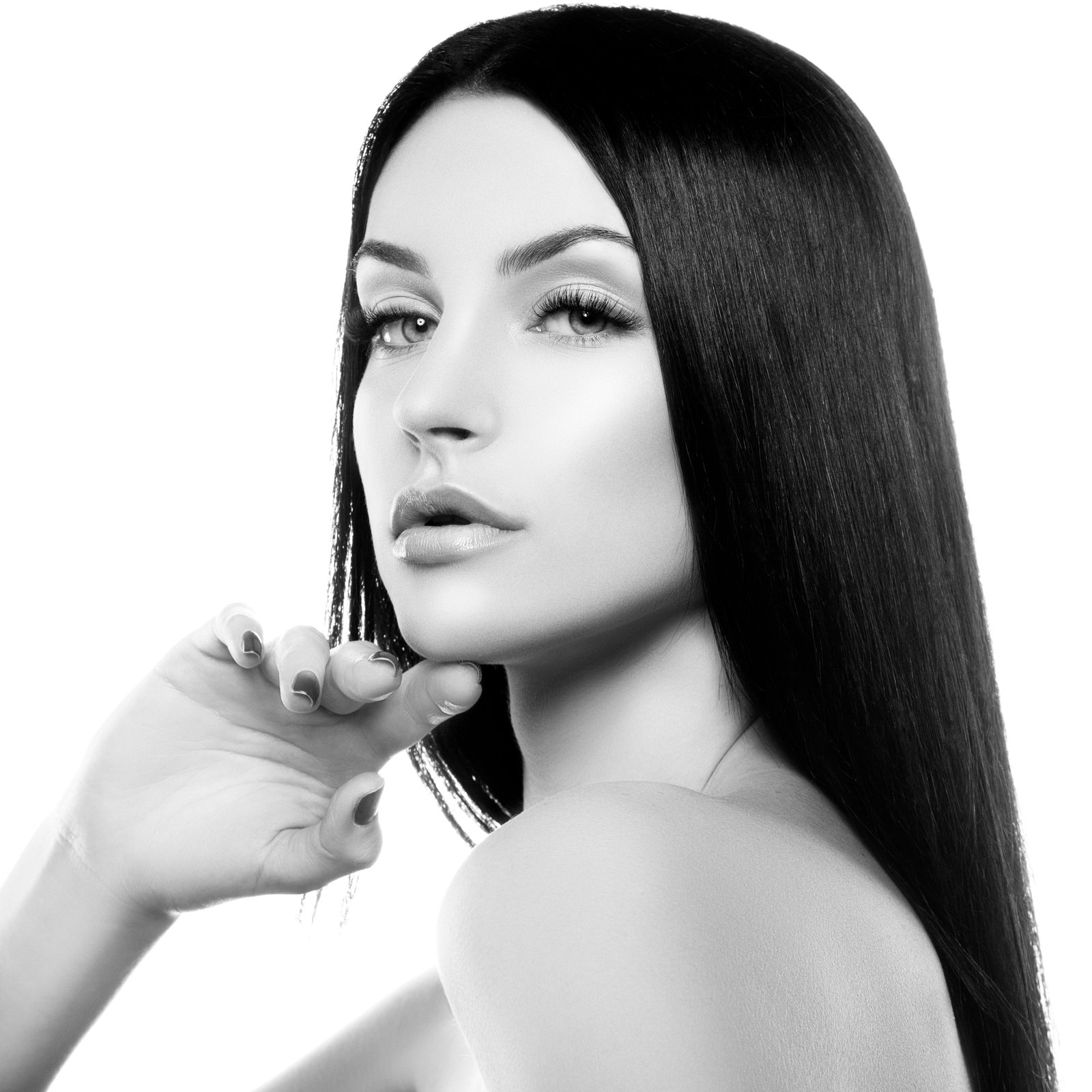
Skin Retouching in Photoshop: The Non-Destructive Method That Actually Works When I first started retouching skin, I made every mistake possible. I’d clone directly on the original layer, oversharpen, and create that plastic, obviously-edited look that screams “I used Photoshop.” After years of refinement, I’ve developed a workflow that delivers natural results while protecting your original image. I’m sharing exactly what I do. Why Non-Destructive Retouching Matters Here’s what I learned the hard way: destructive edits limit your flexibility.

Skin Retouching in Photoshop: A Step-by-Step Guide to Natural Results

Skin Retouching in Photoshop: A Step-by-Step Guide to Natural Results

Skin Retouching in Photoshop: A Step-by-Step Guide to Natural Results When I first started retouching portraits, I made every beginner’s mistake: I over-smoothed skin until it looked plastic, I left obvious healing marks, and I didn’t know the difference between tools that should do the heavy lifting versus those for fine detail work. Over the years, I’ve refined my approach, and I want to walk you through exactly what I do now—because natural-looking skin retouching isn’t complicated once you understand the right workflow.

RAW Editing in Photoshop: Your Complete Guide to Non-Destructive Workflows

RAW Editing in Photoshop: Your Complete Guide to Non-Destructive Workflows

RAW Editing in Photoshop: Your Complete Guide to Non-Destructive Workflows When I first started working with RAW files in Photoshop, I realized I was sitting on untapped potential. Most photographers shoot in RAW format but process them in Lightroom or Capture One alone. Here’s what I discovered: Photoshop’s Smart Objects and adjustment layers give you RAW-like flexibility even after you’ve opened your file. Today, I’m showing you how to harness this power.

How to Create a Photoshop Composite: Cowboy Portrait Step-by-Step

How to Create a Photoshop Composite: Cowboy Portrait Step-by-Step

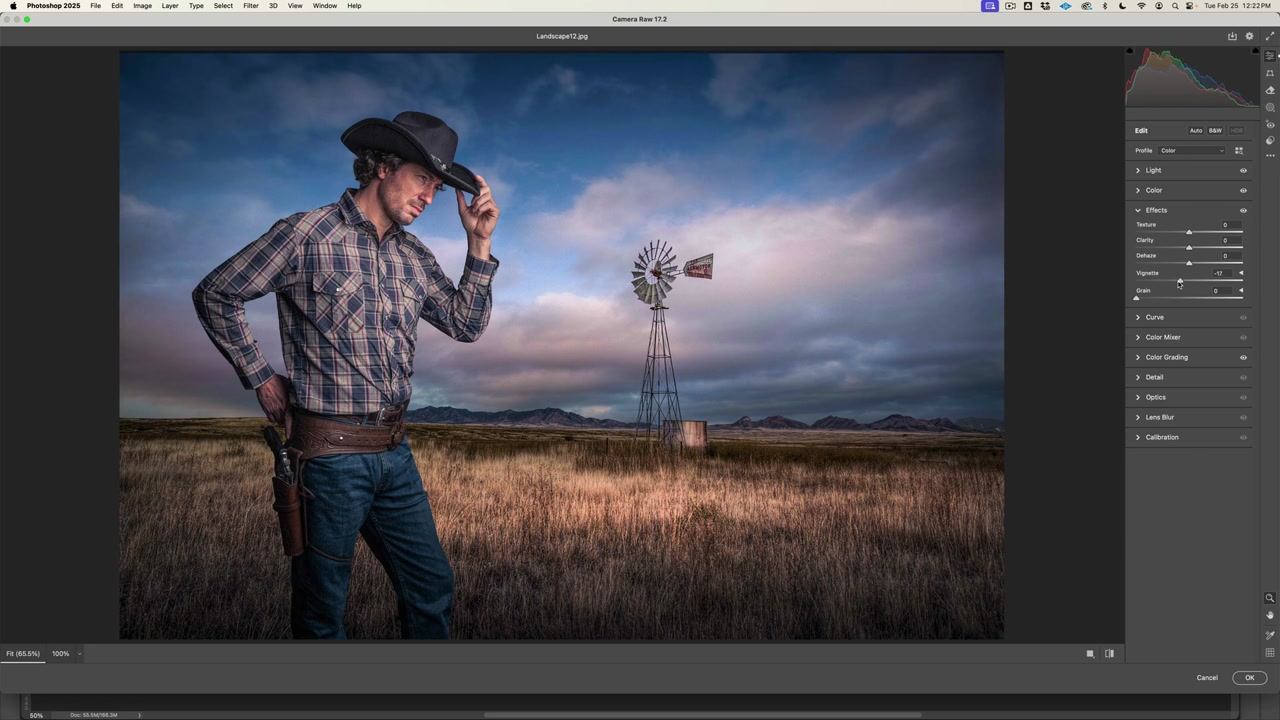
In this tutorial, I’m going to walk you through the complete process of creating a photo composite in Photoshop — taking a studio-shot cowboy portrait and placing him into a dramatic western landscape. We’ll cover everything from selection to Camera RAW editing to final light matching. You can download the source files here to follow along. Step 1: Setting Up Your Files Start by downloading the tutorial files. You’ll get two images: the cowboy portrait shot on a gray studio background, and a western landscape with a windmill.

How to Sharpen an Image in Photoshop

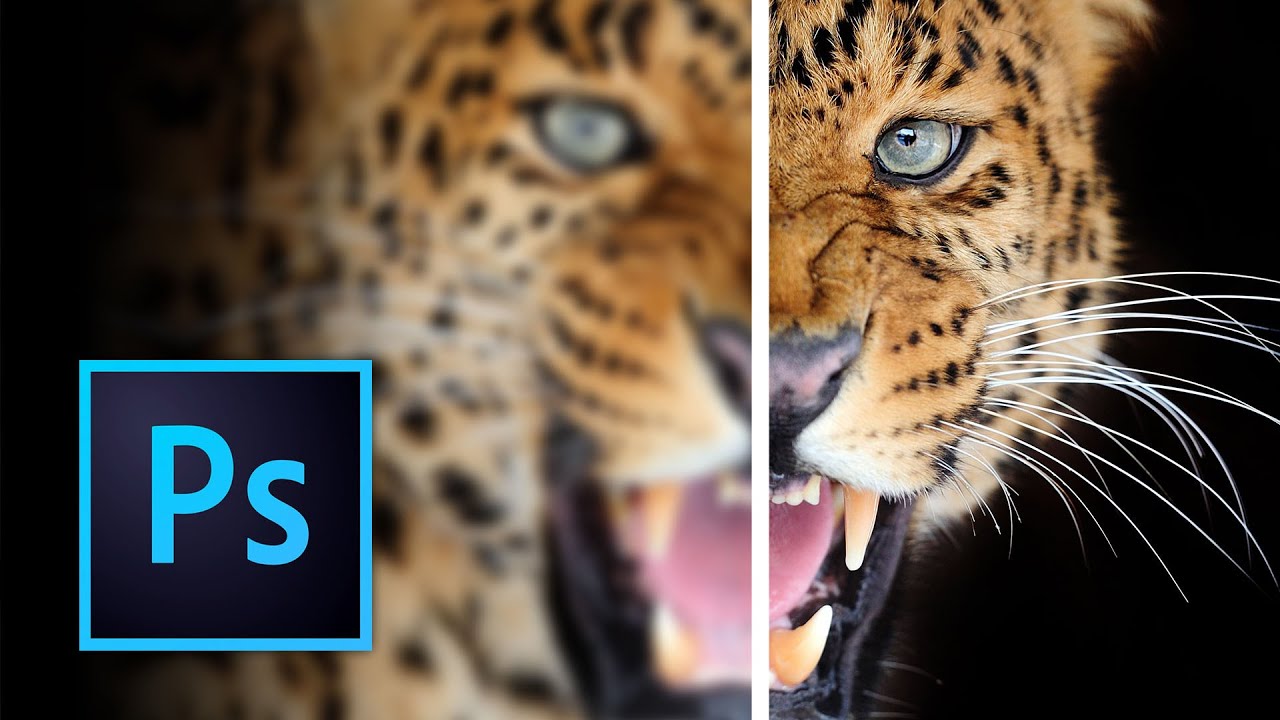
How to Sharpen an Image in Photoshop

Getting Started Before we begin, download the source files for this How to Sharpen and image in Photoshop tutorial by using the link below. You can also watch the video by clicking here. Download Tutorial Files Once you have the files downloaded, open the first image in Photoshop. If you are not already in the Essentials workspace, click on the “Essentials” option at the bottom. Additionally, if you have made any changes to the workspace, you can reset it by going to Window > Application Frame.

How to Smooth Skin in Photoshop

How to Smooth Skin in Photoshop

In today’s tutorial, I’m going to teach you how to smooth skin in Photoshop. We’ll start with a basic image and transform it into a beautifully retouched photo using a really cool fast action. Ready to dive in? Let’s go step-by-step so you can follow along! Download the Resources To fully benefit from this tutorial, make sure you download the resources and the action provided. Click the link below, input your email address, and download the images and the action file.

How to use Lens Flares in Photoshop

How to use Lens Flares in Photoshop

In this tutorial, I’m going to show you how to use lens flares in Photoshop to create interesting lighting and drama in your images. We’ve all seen poorly used lens flares, but there is a nice way to use them in subtle and natural-looking ways. We’ll explore how to use these techniques on both a portrait and an urban landscape. First Download the Free Source Files You can follow along by downloading the sample files here.

How to add Shadows in Photoshop Tutorial

How to add Shadows in Photoshop Tutorial

In this tutorial, I’m going to show you how to add shadows in Photoshop and how to manipulate shadows to match the light source, angle, perspective, blur, and opacity. It’s pretty simple, but it looks pretty cool. To get started, Download the source files to follow along with this tutorial. Get the source files Overlaying the Sky in Photoshop Open the road.jpeg and sky.jpeg files in Photoshop. With the Move tool, drag the sky image over to the road image file.

Dramatic Lighting in Photoshop: A Step-by-Step Guide

Dramatic Lighting in Photoshop: A Step-by-Step Guide

Learn how to add drama to any picture using Photoshop In this tutorial, you will learn how to create dramatic lighting in Photoshop to give your images a completely new look. This technique involves adding light to a darkened image, simulating windows, lens flares, and manipulating the channels to create selections. First Download the Free Source Files You can follow along by downloading the sample file here. You can also watch the video by clicking here.

How to Change the Color of Anything in Photoshop

How to Change the Color of Anything in Photoshop

Learn how to change the Color of Anything in Photoshop In this tutorial, we will be covering how to change the color of anything in Photoshop using a step-by-step process. We will start with a photograph, and by the end of the tutorial, you will learn how to transform it into two different color versions. So, let’s dive in! First Download the Free Source Files To follow along with this tutorial, download the images by using the link below.

How to create a Double Exposure in Photoshop

How to create a Double Exposure in Photoshop

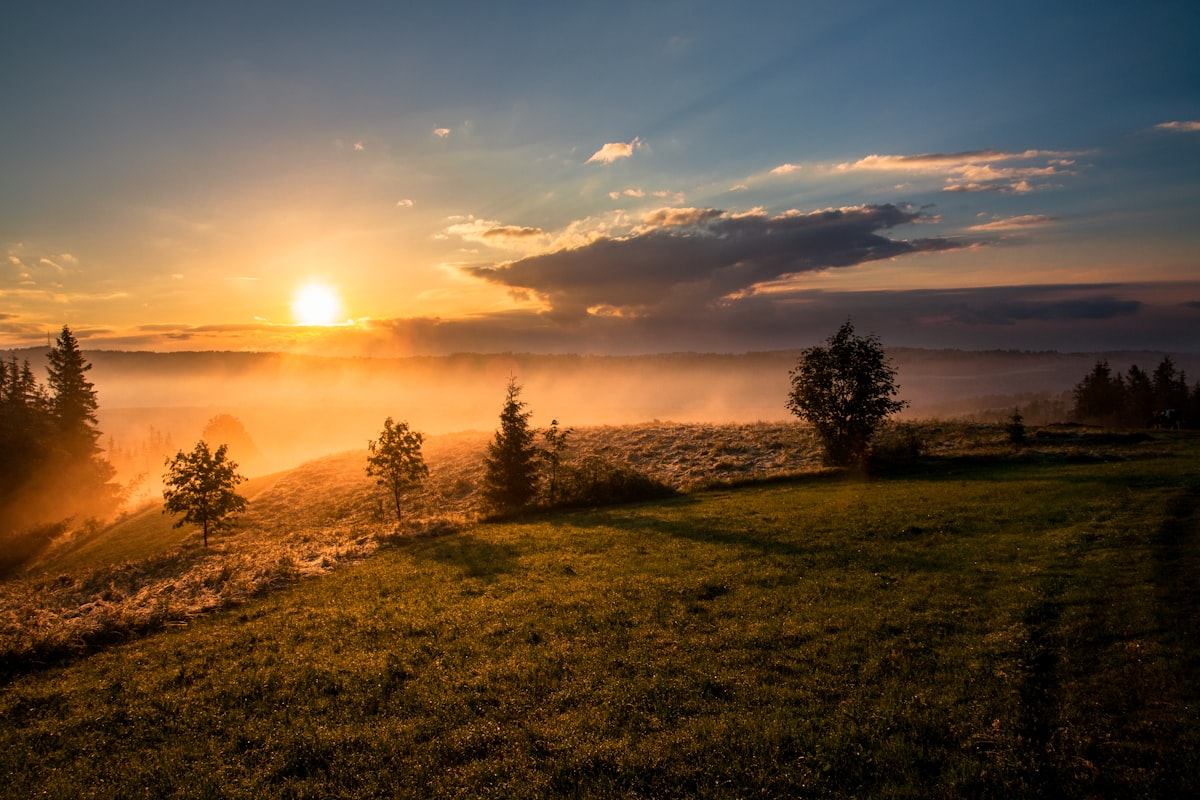
Overview In this tutorial, you’ll learn how to create a double exposure effect in Photoshop using two images – a portrait and a nature scene. After following these steps, you’ll get a great final result that looks like this: By combining the below Portrait image with a Landscape image into a double exposure. This is the Landscape image we are going to use. To get started download the image files below so you can follow along.

How to use Photoshop generative fill and AI

How to use Photoshop generative fill and AI

Introduction to Photoshop generative fill and AI If you’re a Photoshop user, then you’re probably always on the lookout for new features and ways to improve your workflow. In this article, I am going to show you how to use Photoshop generative fill so you can see how this can speed up your workflow. Generative fill is a new feature in Adobe Photoshop CC that allows you to quickly select an area and then use a text prompt to change what you have selected.