Select Literally Anything in Photoshop

Select Literally Anything in Photoshop

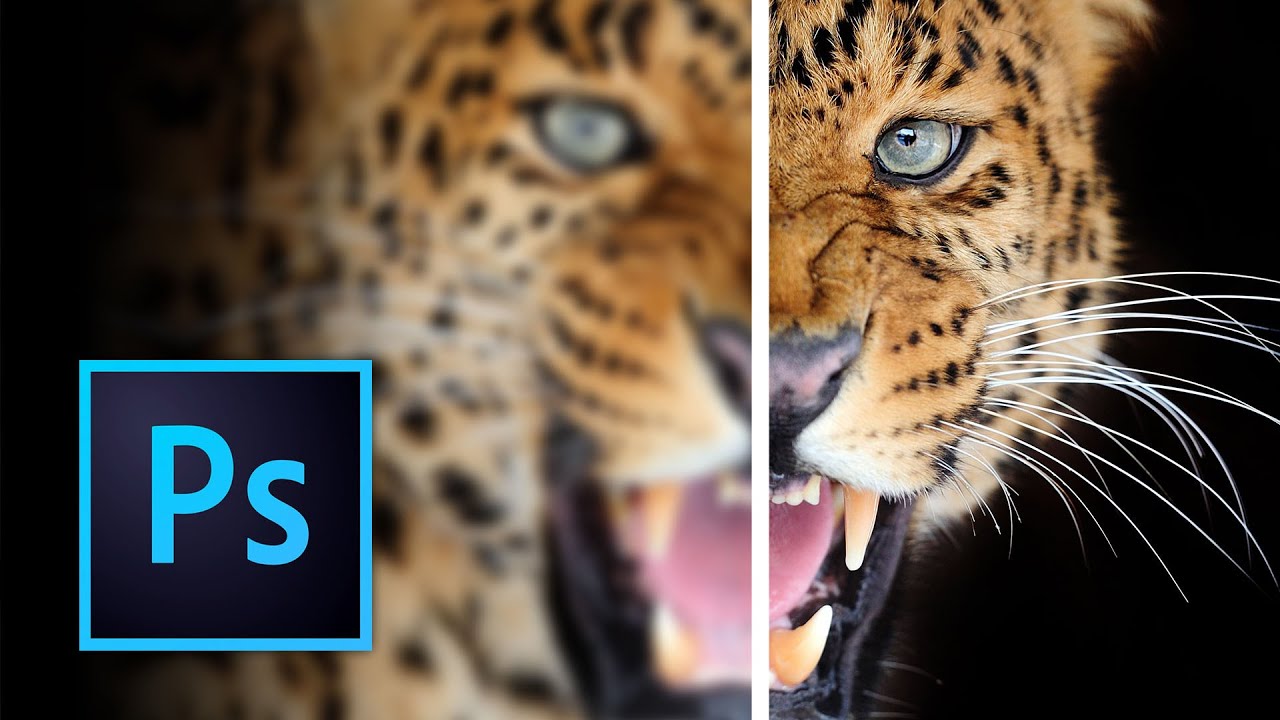
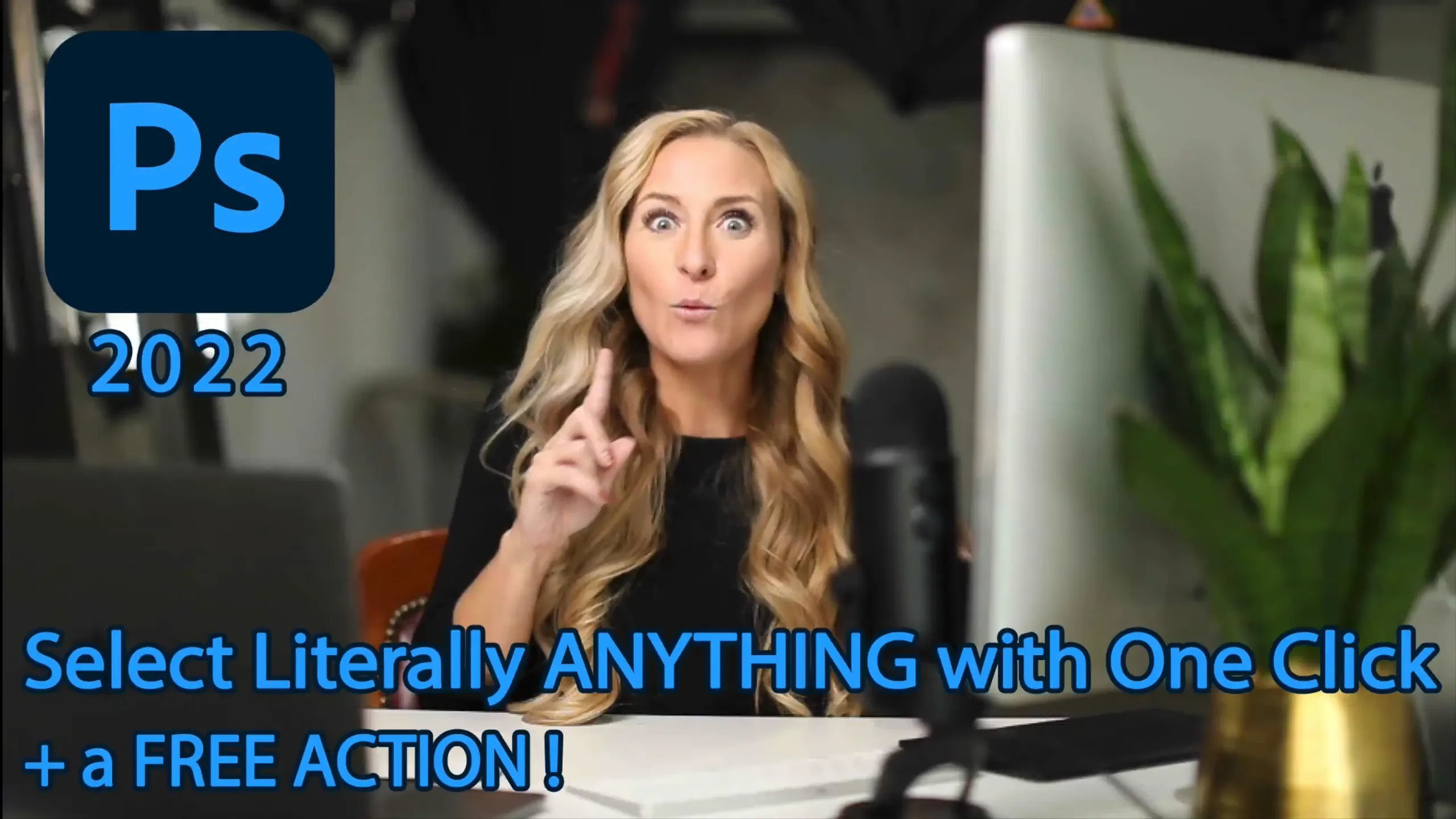
Photoshop Beginner Tutorial: Select Literally Anything in Photoshop with** One Click** My name is Christina Sherk and I am a professional retoucher, Photoshop educator, and portrait photographer. Today, I am going to share with you an unbelievable tip that will change the way you work in Photoshop forever — regardless of if you are a portrait photographer, landscape photographer, or anything else. This trick is that great! This tip will allow you to save so much time by enabling you to select literally ANYTHING in Photoshop with just ONE CLICK.

Frequency Separation MADE EASY for Skin Retouching in Photoshop

Frequency Separation MADE EASY for Skin Retouching in Photoshop

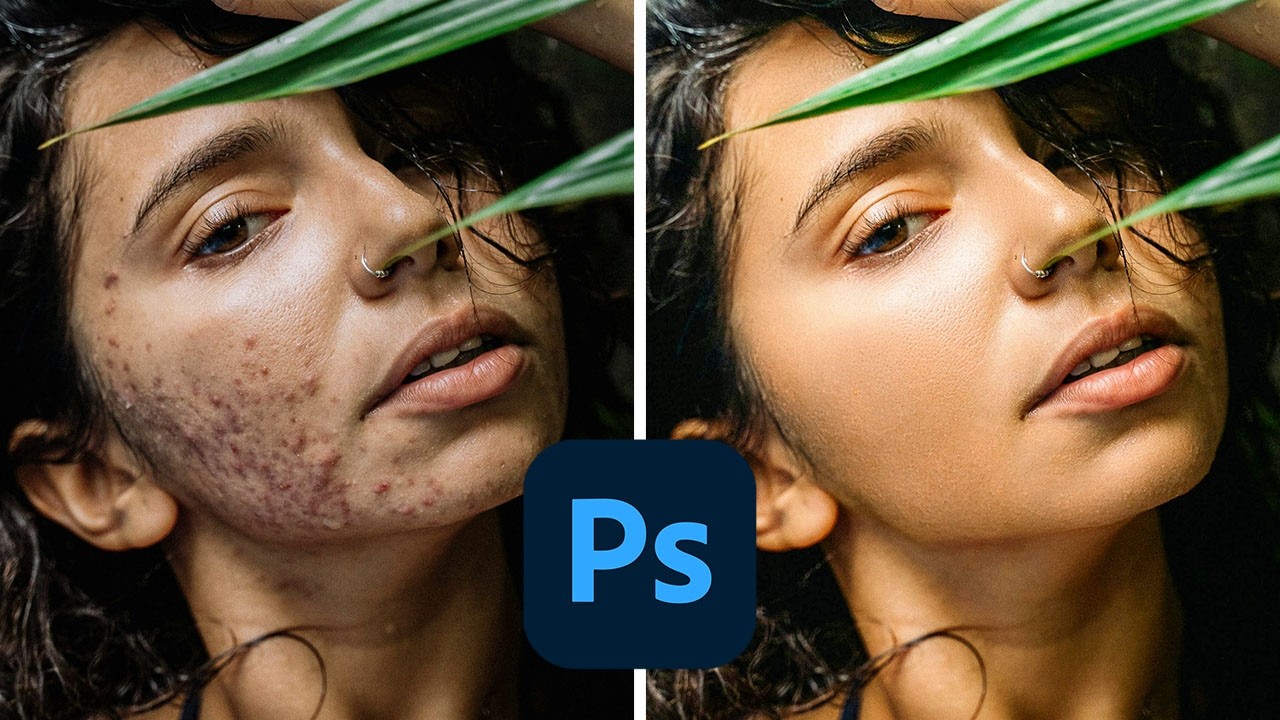
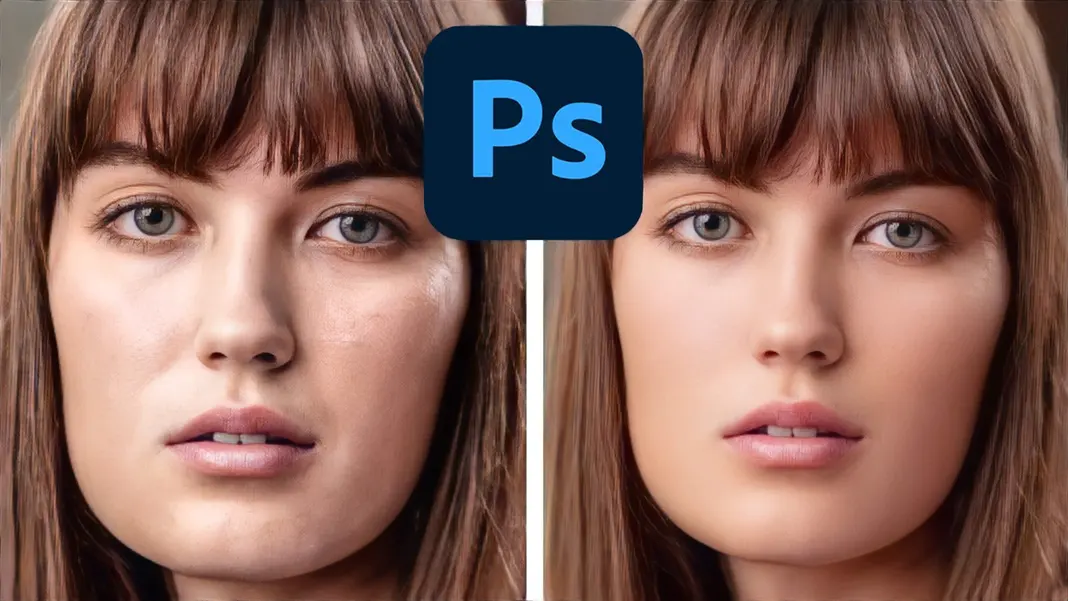
My name is Joel Grimes and today I’m going to teach you a really quick frequency separation technique for skin retouching. If you’re working on a beauty, fashion, or headshot image and need to touch up the subject’s skin, this is the tutorial for you. You can watch the video below or simply follow along. Download How to Retouch a Portrait Tutorial Below is the final result we are going for.

How to Change a Background in Photoshop

How to Change a Background in Photoshop

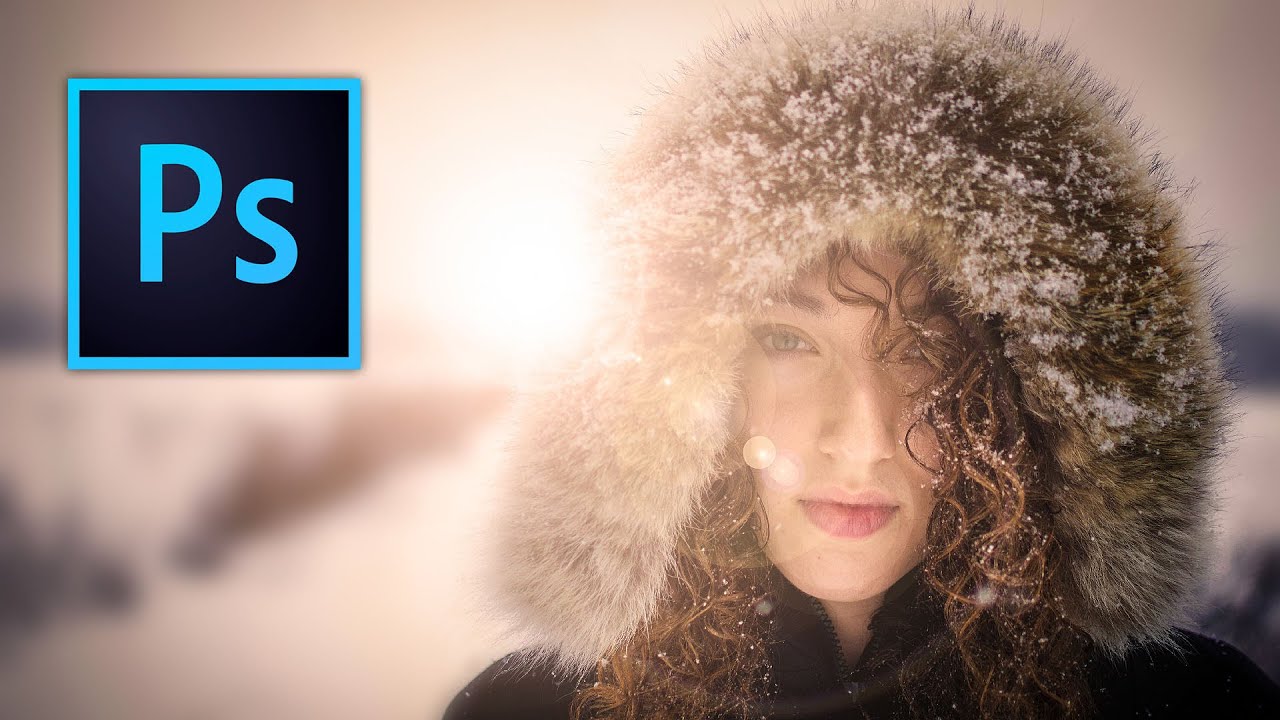
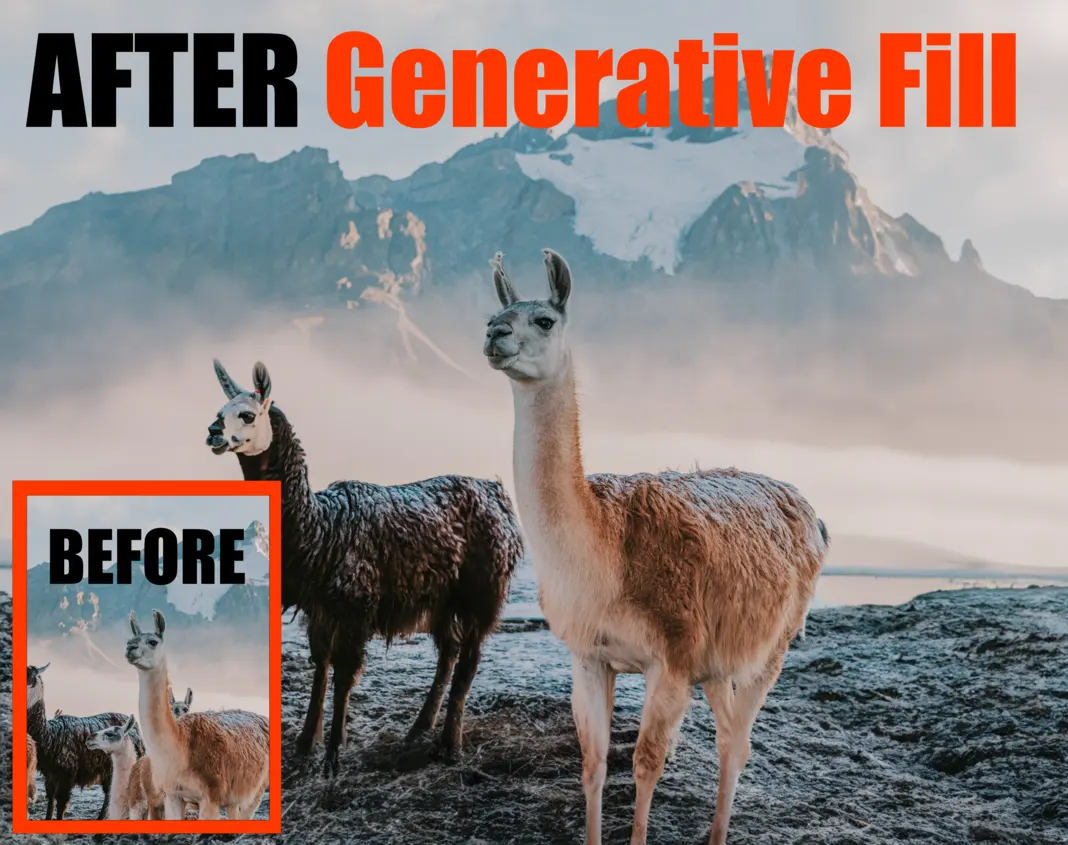
With Photoshop, it is possible to make some pretty dramatic changes to the background of photos. Of course, nobody wants an end product that looks like you just cut and paste a background and foreground together. So, in this free step-by-step Photoshop tutorial with images, I’ll show you how to change a background in Photoshop step-by-step as well as how to seamlessly integrate the foreground and background together into one composition.

How To Make Colors Pop in Photoshop

How To Make Colors Pop in Photoshop

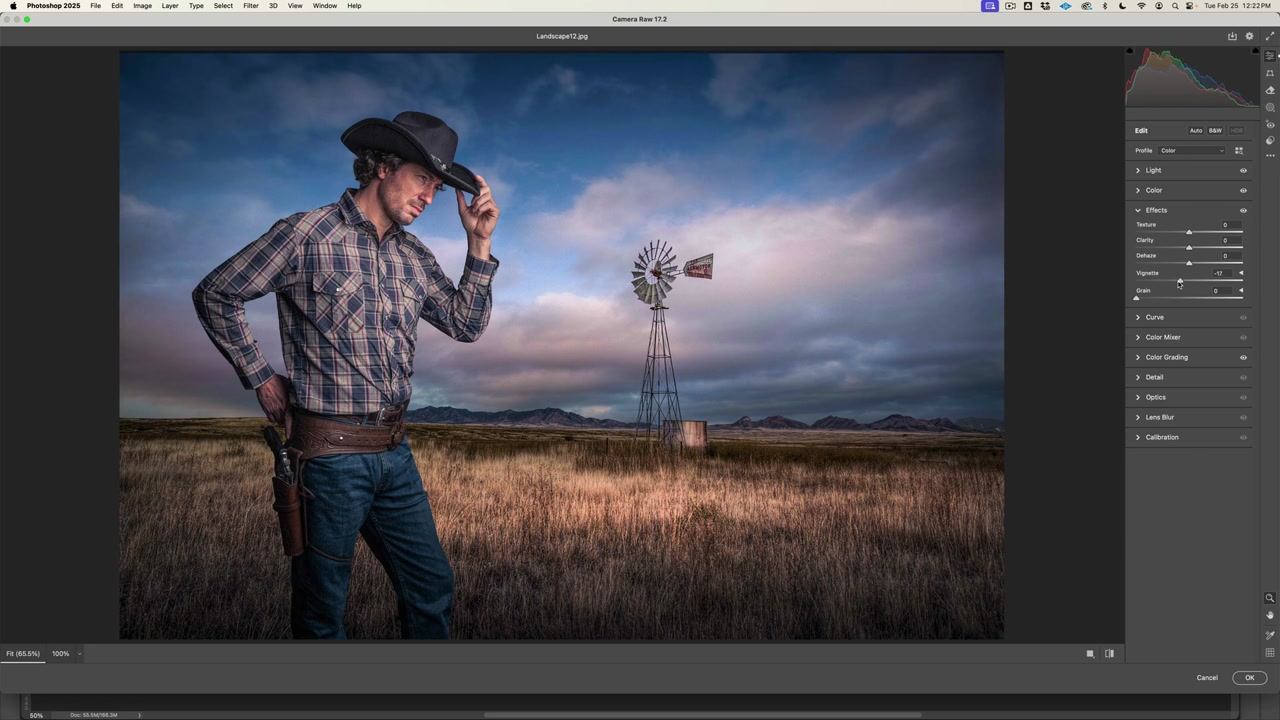
In this Photoshop tutorial you’re going to learn how to make colors pop in Photoshop along with some really easy tricks on managing any Photoshop document. If you want the files used in this tutorial to follow along, click below. Download Tutorial Files You can also watch the video by clicking here or just follow the steps outlined below. Now let me show you how to make colors pop in Photoshop.