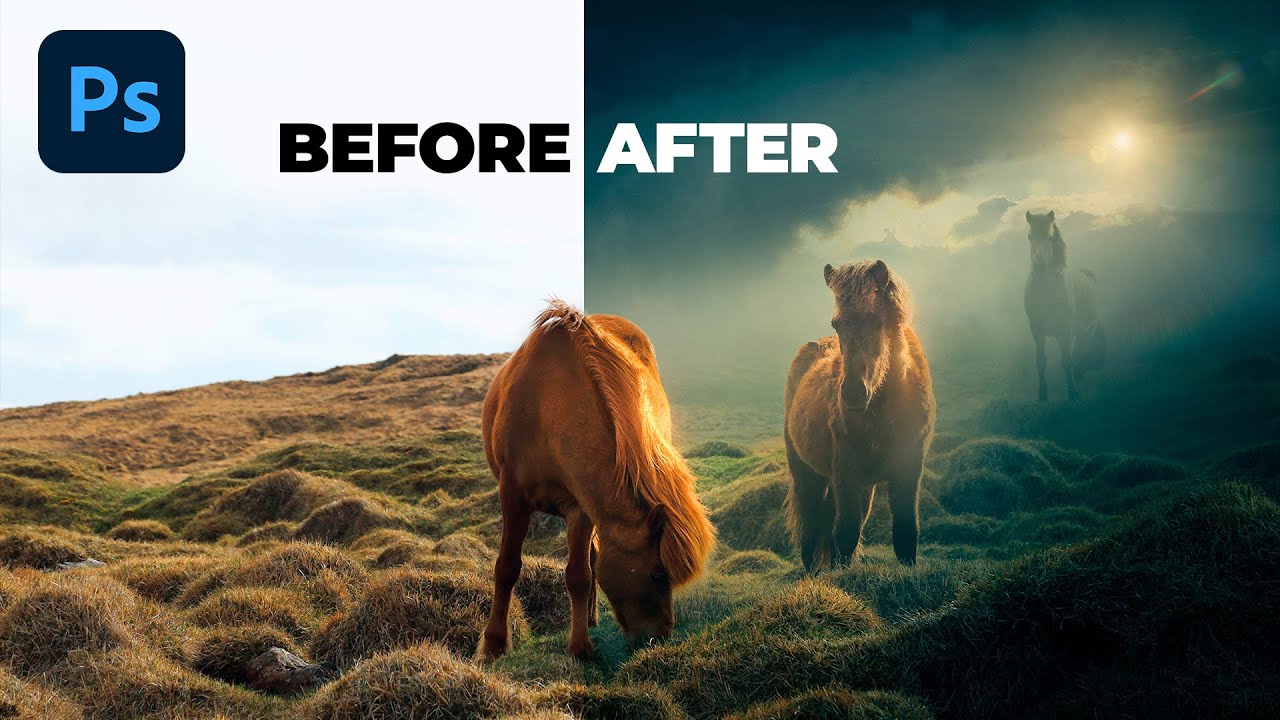
Smart Objects in Photoshop: The One Habit That Will Save Your Composites

Smart Objects in Photoshop: The One Habit That Will Save Your Composites

The Mistake I Kept Watching Designers Make Early in my agency days, I shared a workspace with a guy who was genuinely talented. Fast, creative, good eye. But every time a client asked for a revision, he’d groan, open a flattened PSD, and start rebuilding parts of the file from scratch. He wasn’t doing anything wrong, exactly. He just wasn’t working smart. He’d scale images down, flatten layers to keep file sizes manageable, and move on.

Why Your Composites Look Fake (And the Lighting Math That Fixes Them)

Why Your Composites Look Fake (And the Lighting Math That Fixes Them)

I once spent 40 hours on a single composite. Not because the job was massive, but because I kept feeling like something was wrong and I couldn’t name it. The subject was sharp. The mask was clean. The colors were close. But every time I zoomed out, the person looked like a cardboard cutout standing in front of a painting. It was the composite that got me my first agency job, so the suffering was worth it.

Why Your Composites Look Fake (And the Blending Workflow That Fixed Mine)

Why Your Composites Look Fake (And the Blending Workflow That Fixed Mine)

The first composite I ever built that actually mattered took me 40 hours. I was 24, trying to land my first agency job, and I had submitted a portfolio piece where I’d placed a model into an outdoor industrial scene. The art director called me back not to offer me the job, but to ask one question: “Why does she look like she’s floating in front of the photo instead of inside it?

Why Your Composites Look Fake (And the Blending Workflow That Fixes It)

Why Your Composites Look Fake (And the Blending Workflow That Fixes It)

A few years into my agency career, I handed a composite to a creative director and he looked at it for about four seconds before saying, “The light is lying.” He didn’t say the mask was bad. He didn’t say the colors were off. He went straight to light, because that’s what the brain reads first when it decides whether an image feels real or fake. That one comment probably saved me years of chasing the wrong problems.

Master Layer Masking: The Foundation of Professional Compositing

Master Layer Masking: The Foundation of Professional Compositing

Master Layer Masking: The Foundation of Professional Compositing If you want to composite images convincingly, you need to understand layer masks. I’m going to walk you through the techniques I use on every composite project—from simple background replacements to complex multi-layer blends. Why Layer Masks Beat Erasing When I started compositing, I made a common mistake: I’d use the eraser tool to remove unwanted parts of a layer. The problem? That’s destructive.

Photo Manipulation Fundamentals: How to Blend Multiple Images Seamlessly

Photo Manipulation Fundamentals: How to Blend Multiple Images Seamlessly

Photo Manipulation Fundamentals: How to Blend Multiple Images Seamlessly When I first started compositing, I thought photo manipulation meant making obvious, surreal images. I quickly learned that the best manipulations are invisible to the viewer—they look like the photographer captured everything in a single shot. Today, I’m sharing the foundational techniques that make this possible. Understanding Your Base Image Before you combine anything, you need a strong foundation. I always start by opening my primary image—the one that will anchor the composition.

Master Smart Objects in Photoshop: The Non-Destructive Editing Game-Changer

Master Smart Objects in Photoshop: The Non-Destructive Editing Game-Changer

Master Smart Objects in Photoshop: The Non-Destructive Editing Game-Changer When I first started compositing, I’d flatten layers, rasterize without thinking, and often found myself stuck when a client wanted changes. Smart Objects changed everything for me—and they’ll transform how you work too. Let me show you why they’re essential and how to use them effectively. What Are Smart Objects and Why They Matter A Smart Object is a layer that contains image data from raster or vector sources.

Master Photo Manipulation: A Practical Guide to Creating Seamless Composites

Master Photo Manipulation: A Practical Guide to Creating Seamless Composites

Master Photo Manipulation: A Practical Guide to Creating Seamless Composites Photo manipulation intimidates a lot of people, but I’m going to show you it’s not magic—it’s just patience and the right technique. Whether you’re combining two subjects into one image or replacing a background entirely, the core principles remain the same. Let me walk you through exactly how I approach composite work so you can start creating your own seamless manipulations today.

Master Layer Masks: The Foundation of Professional Compositing

Master Layer Masks: The Foundation of Professional Compositing

Master Layer Masks: The Foundation of Professional Compositing If you’re serious about compositing, layer masks are your best friend. I’ve spent years perfecting composite work, and I can tell you that mastery of layer masks separates amateur edits from professional results. Today, I’m walking you through exactly how I use them on every composite project. Why Layer Masks Matter More Than You Think When you’re combining multiple images into one seamless composite, you need control.

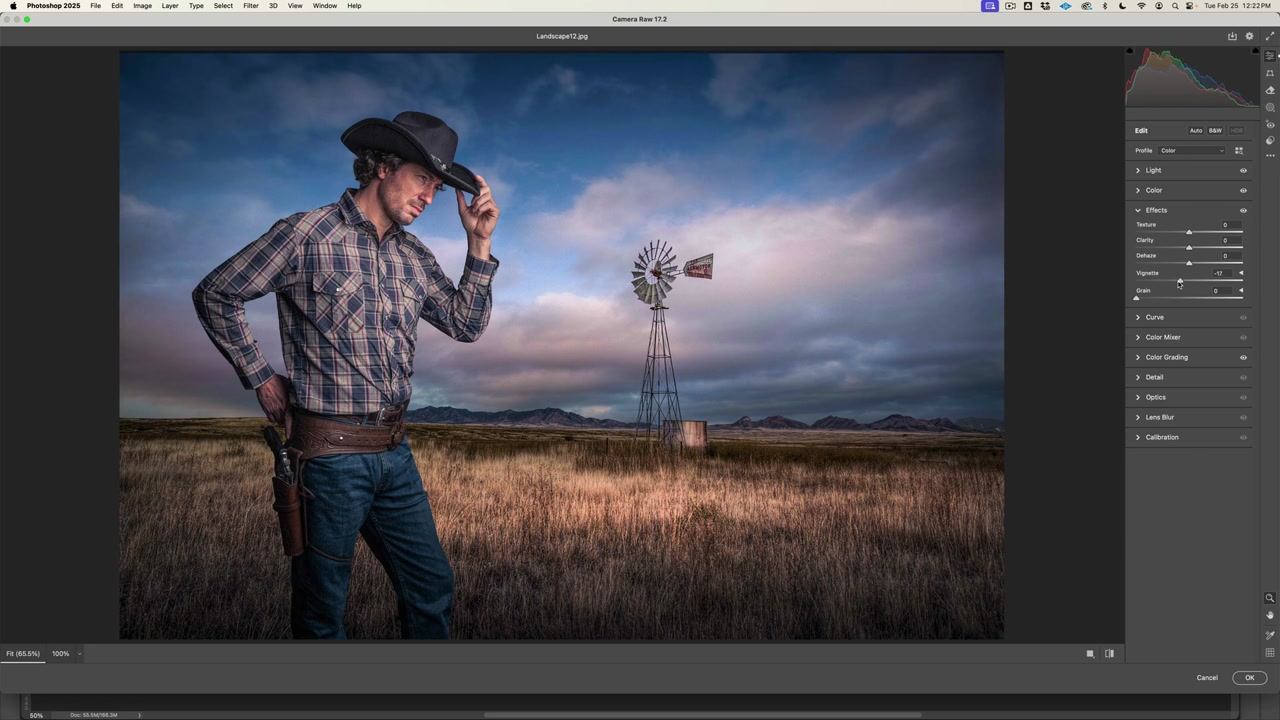
How to Create a Photoshop Composite: Cowboy Portrait Step-by-Step

How to Create a Photoshop Composite: Cowboy Portrait Step-by-Step

In this tutorial, I’m going to walk you through the complete process of creating a photo composite in Photoshop — taking a studio-shot cowboy portrait and placing him into a dramatic western landscape. We’ll cover everything from selection to Camera RAW editing to final light matching. You can download the source files here to follow along. Step 1: Setting Up Your Files Start by downloading the tutorial files. You’ll get two images: the cowboy portrait shot on a gray studio background, and a western landscape with a windmill.

How to Create a Dune-style Movie Poster in Photoshop

How to Create a Dune-style Movie Poster in Photoshop

In this Photoshop tutorial, I’m going to show you how to change a model’s eye color and recreate the character poster for the recent Dune movie. In the course of this tutorial, we’ll also dive into skin blemish correction, frequency separation, blending options and much more. If you want the files used in this tutorial to follow along step-by-step, click below. Download Tutorial Files This post has been adapted from the following YouTube tutorial.

How to Create Depth in Photoshop

How to Create Depth in Photoshop

Hello, my name is Rikard and in this tutorial, I’m going to show you how to create depth in Photoshop. To follow along, download the images from here – you can also watch the video here. Download Tutorial Files How to Create Depth in Photoshop The common issue I see with composites are images posted in the Nucly Facebook group is that they lack three-dimensional depth. Creating three-dimensional depth in a two-dimensional image can be a challenge.