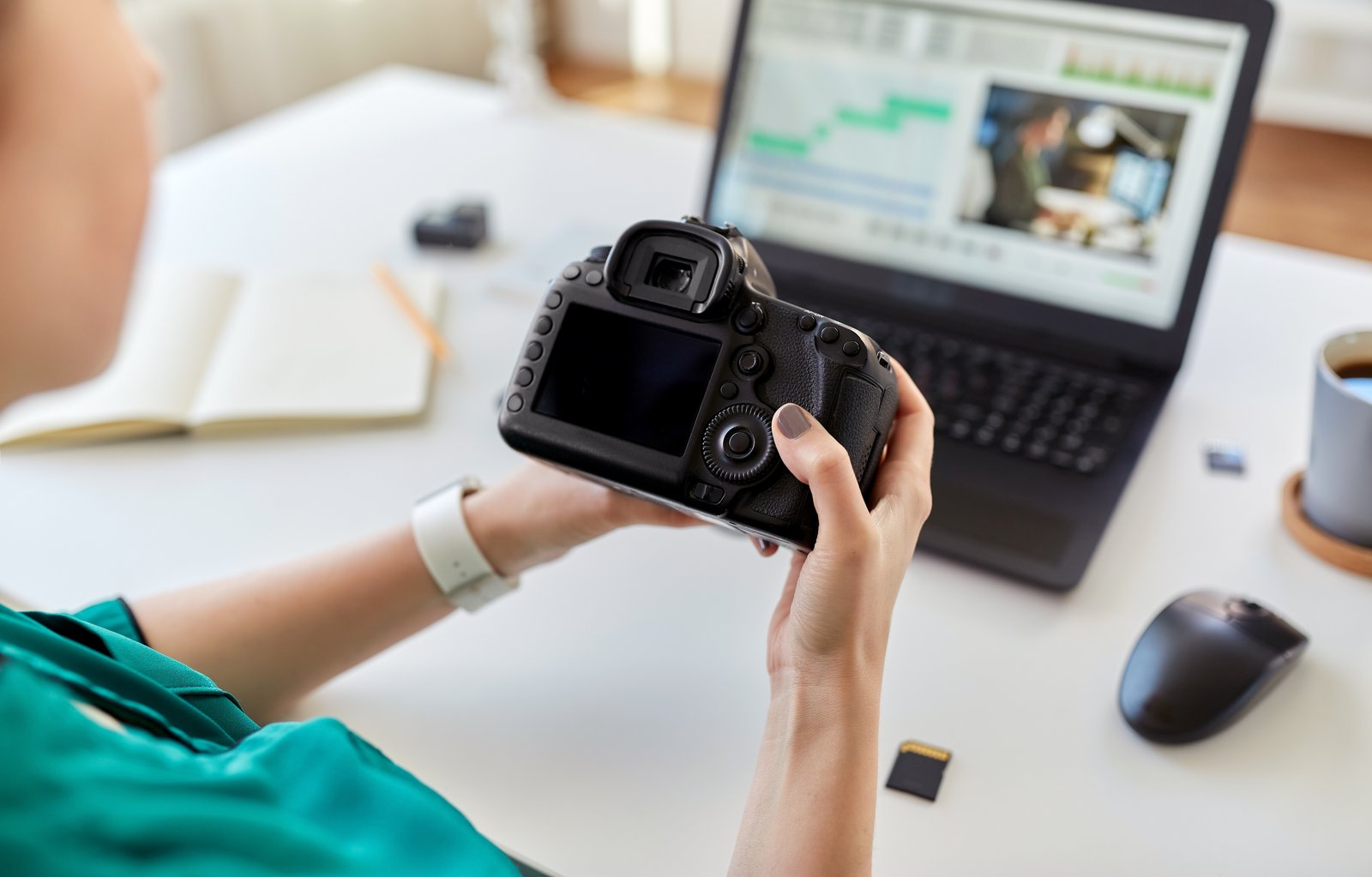
Every few months I get a message from someone who says their edited photos look “plasticky” or “over-processed,” and when I ask to see the file, it’s always the same story. They shot JPEG, pushed the exposure two stops, cranked the saturation, and then wondered why their highlights blew out into flat white puddles and their skin tones turned the color of a traffic cone. This is not a skill problem. It’s a format problem, and it has a clean solution.
What Your Camera Throws Away Before You Even Open Photoshop
When you shoot JPEG, your camera captures raw sensor data and immediately processes it. It applies sharpening, noise reduction, a contrast curve, and color rendering. Then it compresses the result and discards everything it used to get there. You end up with an 8-bit file that contains, at most, 256 tonal values per channel.
A raw file works differently. It stores the unprocessed sensor data with no in-camera adjustments baked in. Depending on your camera, that gives you 12-bit or 14-bit depth per channel, which translates to 4,096 or 16,384 possible tonal values per channel. That is not a small difference. It means you have enormous room to push shadows, recover highlights, and shift white balance without destroying the image. JPEG gives you a printed photograph. Raw gives you the negative.
Opening Raw Files in Photoshop the Right Way
Photoshop processes raw files through Camera Raw, which opens automatically when you drag a .CR3, .NEF, .ARW, or most other raw formats into the application. If you want to open a JPEG through Camera Raw for any reason, you can do it by going to Filter, then Camera Raw Filter, but for full non-destructive editing, you want to start with an actual raw file.
When Camera Raw opens, resist the sliders immediately. Start with the White Balance. Set it using the eyedropper on a neutral gray in the image, or dial in your Kelvin temperature manually. This one adjustment affects every other color decision you make downstream, so getting it right first saves you from chasing your tail later.
From there, work top to bottom in the Basic panel. Exposure first, then Contrast, then the tone controls in this order: Highlights down, Shadows up, Whites, Blacks. A typical starting point for a flat, underexposed image might be: Exposure +0.8, Highlights -60, Shadows +40, Whites +15, Blacks -10. Those are not magic numbers, but they give you something to react to rather than staring at a blank panel.
The Smart Object Step That Saves Your Edits
Before you click Open in Camera Raw, hold Shift. The button changes from “Open Image” to “Open Object.” Click it. This brings your raw file into Photoshop as a Smart Object, which means the Camera Raw settings are embedded and live. Double-click the layer thumbnail at any point and Camera Raw reopens with every slider exactly where you left it.
This is the part most people skip, and it’s the part they regret. Once you flatten a raw conversion into a regular pixel layer, your recovery options shrink to what the 8-bit or 16-bit Photoshop file can handle. As a Smart Object, you still have the full raw latitude behind that layer. I do all my retouching work on layers above the Smart Object and leave the raw conversion untouched until the very end.
If your file is going to a print workflow and size matters, know that a raw Smart Object will make your PSD significantly heavier. A 24-megapixel raw file as a Smart Object can add 50 to 70MB to your PSD depending on the camera. Budget for that in your storage and save to an SSD if you’re working on multiple composites at once.
Where Raw Editing Ends and Photoshop Takes Over
Camera Raw handles global adjustments beautifully, but it is not the place for targeted work. Once I’ve done the raw conversion and brought the Smart Object into Photoshop, I create a new layer set to Overlay mode and use a soft brush at 10 to 15 percent opacity for any dodge and burn work. I use Curves adjustment layers clipped to specific selections for targeted color correction. Everything that requires precision, a mask, or pixel-level control happens in Photoshop proper, not in Camera Raw.
I learned this the hard way during a commercial job a few years back, when I tried to do too much inside Camera Raw because I thought it would save time. I used the Local Adjustment Brush to try to smooth a background and ended up with banding artifacts that were invisible at 100 percent zoom but showed up as horizontal streaks when the image was printed at 24 by 36 inches. Camera Raw’s local adjustments are useful for mild corrections, but they are not a retouching tool.
Why Bit Depth Still Matters After You Leave Camera Raw
When you open your Smart Object into Photoshop, check the document mode at the top of the screen. If it says 8 Bits/Channel, go to Image, Mode, and switch to 16 Bits/Channel. You lose access to some filters, but you gain the ability to make aggressive tonal corrections without posterization or banding appearing in smooth gradients like sky or skin.
I keep almost all of my retouching work in 16-bit until the final export step. When I export a JPEG for web delivery, I convert to 8-bit at that point and export at quality level 10 in Photoshop’s Export As dialog, which balances file size against visual quality well. For print, I deliver 16-bit TIFFs with LZW compression, which typically keeps a 24-megapixel file under 90MB without any visible quality loss.
The single most important habit you can build is this: start every edit in raw, keep the Smart Object intact, and do not flatten until you have a final file you are confident about. Every other editing skill you develop sits on top of that foundation.
Comments
Leave a Comment