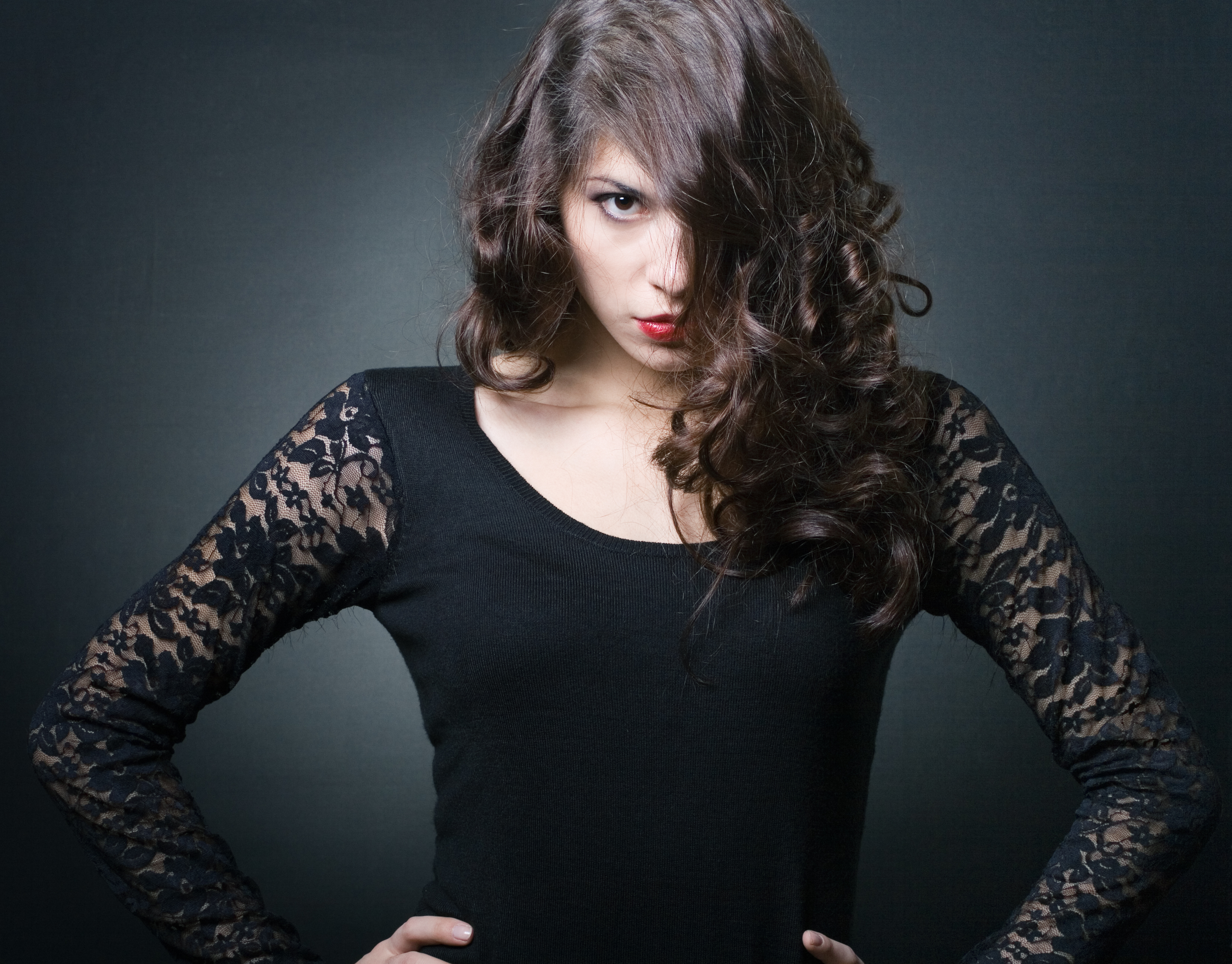
Frequency Separation in Photoshop: The Professional Retouching Technique You Need to Master
When I first learned frequency separation, it changed how I approach portrait retouching. Instead of fighting between removing blemishes and keeping natural skin texture, this technique lets you do both. I’m going to walk you through exactly how I set it up and use it on every client portrait.
What Is Frequency Separation?
Frequency separation splits your image into two layers: one containing color and tone information, and another containing texture and detail. Think of it this way—your image is made of two conversations happening at once. One layer talks about where colors and tones are. The other talks about how detailed the surface looks. By separating these, you can fix skin tone without destroying texture, or smooth texture without making skin look plastic.
This is why professional retouchers won’t touch a portrait without it.
Setting Up Your Layers
Start with your image open in Photoshop. You’ll need two duplicate layers. Here’s exactly what I do:
First, duplicate your background layer twice. Name the top layer “High Pass” and the middle layer “Blur.” This naming matters—it keeps you organized when you’re working.
Select the Blur layer and go to Filter > Blur > Gaussian Blur. I use a radius between 8-12 pixels for most portraits. This removes all the detail and leaves only color and tone information. You’ll see the image become completely smooth—that’s correct.
Now select the High Pass layer and go to Filter > Other > High Pass. Set the radius to match your Gaussian Blur value—if you used 10 pixels on Blur, use 10 pixels here. The image will turn gray. This layer now contains only texture and detail.
Making Them Work Together
The High Pass layer needs a blend mode change to become useful. Set it to Overlay or Linear Light, depending on how strong you want the texture to appear. If Overlay feels too subtle, Linear Light gives more pronounced results. I usually start with Overlay and adjust if needed.
Now you have your separation complete. The Blur layer handles color correction. The High Pass layer preserves all your skin texture.
How to Retouch With This Setup
This is where the magic happens. Select the Blur layer and grab your healing brush. Remove blemishes, even out skin tone, and fix color problems. Work freely—you’re only affecting color, not texture. The healing looks natural because you’re not dragging detail around.
When you’re done with color work, flatten those two layers together. Create another duplicate of your original background and place it on top. Set this to Lighten blend mode at 50% opacity. Use a layer mask and paint black where you want to refine shadow areas. This adds a final polish without looking overdone.
Why This Beats Other Methods
Before I used frequency separation, I’d either blur skin and lose all character, or get stuck with visible healing brush strokes. This technique separates the problem—you fix one thing at a time, which is how your eyes actually perceive skin.
The other advantage? Non-destructive workflow. Keep your frequency separation layers. If the client wants less retouching, lower the Blur layer’s opacity. If they want more, increase the High Pass blend mode strength. You’re adjusting, not starting over.
The Key Setting Most People Miss
Many retouchers skip this: after you’re done retouching, add a curves adjustment layer on top. Pull the midtones up slightly to add luminosity back into the skin. Frequency separation can sometimes make skin look slightly flat. A gentle curves adjustment fixes this instantly.
Start with frequency separation on your next portrait. Once you see how cleanly you can separate color work from texture work, you’ll never go back to flat healing brush work again.
Comments
Leave a Comment