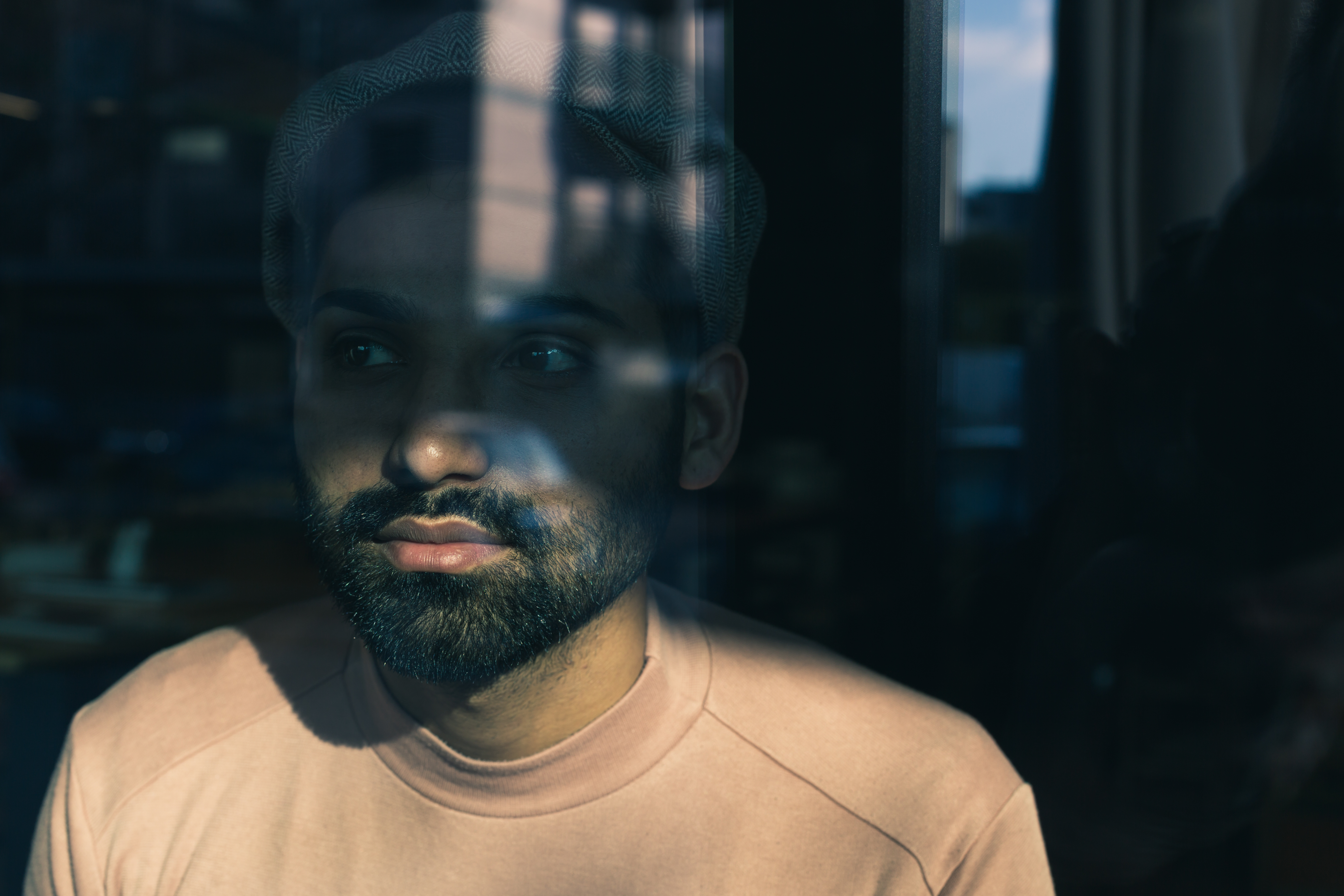
Dodge and Burn in Photoshop: Control Light and Shadow Like a Pro
I use dodge and burn almost every time I retouch a photograph. These two tools give me surgical control over light and shadow, letting me sculpt dimension into flat areas, draw attention where I want it, and fix lighting problems that seem impossible to solve any other way.
If you’re new to these tools, I’ll walk you through exactly how I use them. You’ll see that they’re simpler than they sound—and exponentially more powerful than most photographers realize.
What Dodge and Burn Actually Do
Dodge lightens areas of your image. Burn darkens them. That’s it. But here’s what makes them valuable: they let you adjust specific regions without affecting the rest of your photo, and they work naturally with your image’s existing tones.
I think of dodging and burning as digital versions of the darkroom techniques photographers used for decades. You’re selectively exposing or protecting areas during development. In Photoshop, you get perfect control with an undo button.
The Non-Destructive Way I Work
I never apply dodge and burn directly to my original layer. Instead, I create a new layer dedicated to these adjustments.
Here’s my process:
- Create a new layer and fill it with 50% gray (Layer > New > Layer, then Edit > Fill > 50% Gray)
- Change this layer’s blend mode to Overlay
- Select the Dodge/Burn tool from your toolbox
This approach keeps your original image intact. If you hate the results, delete the layer and start over. If you want to adjust intensity, just reduce the layer’s opacity.
Settings That Matter
The Dodge and Burn tool has three critical settings I adjust for every job:
Brush size: I match this to the area I’m working on. For subtle eye brightening, I use a small brush (around 40 pixels). For larger areas like cheekbones, I go bigger (100-200 pixels).
Exposure: This controls how strong each stroke is. I usually set this between 25-40% so I can build up the effect gradually. Lower exposure gives you more control. Higher exposure is faster but riskier.
Range: This determines which tones the tool affects. I use “Midtones” for general work, “Highlights” when I want to brighten bright areas without touching shadows, and “Shadows” for darkening dark areas specifically.
Practical Techniques I Use Every Day
Brightening eyes: This is where dodge and burn proves its worth. Switch to Dodge, select Highlights, reduce exposure to 30%, and gently paint over the iris. One or two strokes and the eye comes alive without looking edited.
Sculpting cheekbones: I switch to Burn with Midtones selected and paint just under the cheekbone with a soft brush. This creates a shadow that adds dimension. Then I dodge the top of the cheekbone to make it catch light. Five minutes of work and the face has structure.
Fixing uneven skin tone: If one side of the face is darker than the other, I dodge the darker side slightly. This balances the lighting without looking artificial because I’m working with the image’s natural tones.
Creating depth in backgrounds: Burning the edges of your image slightly draws focus to the center. I use a large, soft brush with low exposure and paint around the perimeter.
The One Mistake I See Most Often
People use too much exposure and make their edits obvious. Start at 20-30% exposure. Build up gradually. You can always add more, but you can’t undo a heavy-handed stroke.
Also, keep your brush soft. Hard-edged brushes create visible lines that scream “edited.”
Wrapping Up
Dodge and burn aren’t complicated, but they’re transformative. They teach you to see light and shadow deliberately—to understand that good retouching isn’t about perfection, it’s about control.
Start with the non-destructive method I showed you, keep your exposure low, and practice on portraits first. You’ll be amazed how much dimension and polish you can add in minutes.
Comments
Leave a Comment