Photoshop Beginner Tutorials

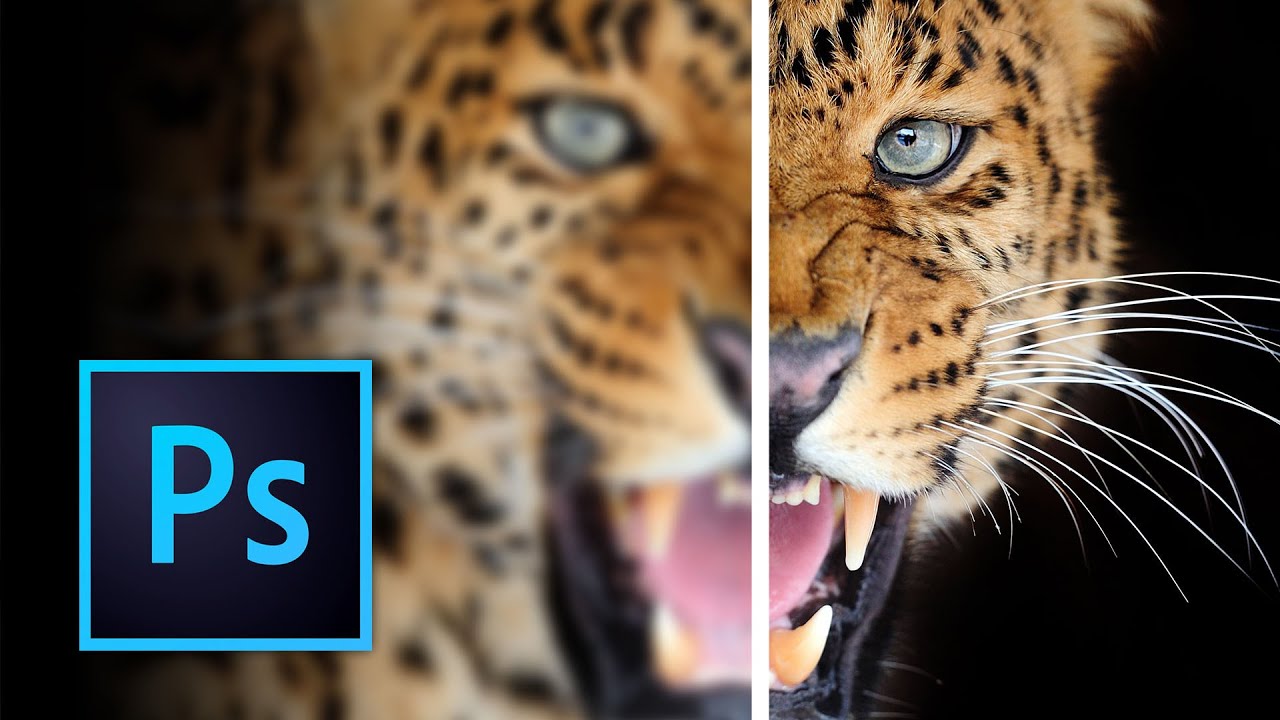
How to Sharpen an Image in Photoshop

Getting Started Before we begin, download the source files for this How to Sharpen and image in Photoshop tutorial by using the link below. You can also watch the video by clicking here. Download Tutorial Files Once you have the files downloaded, open the first image in Photoshop. If you are not already in the Essentials workspace, click on the “Essentials” option at the bottom. Additionally, if you have made any changes to the workspace, you can reset it by going to Window > Application Frame.
Photoshop Beginner Tutorials

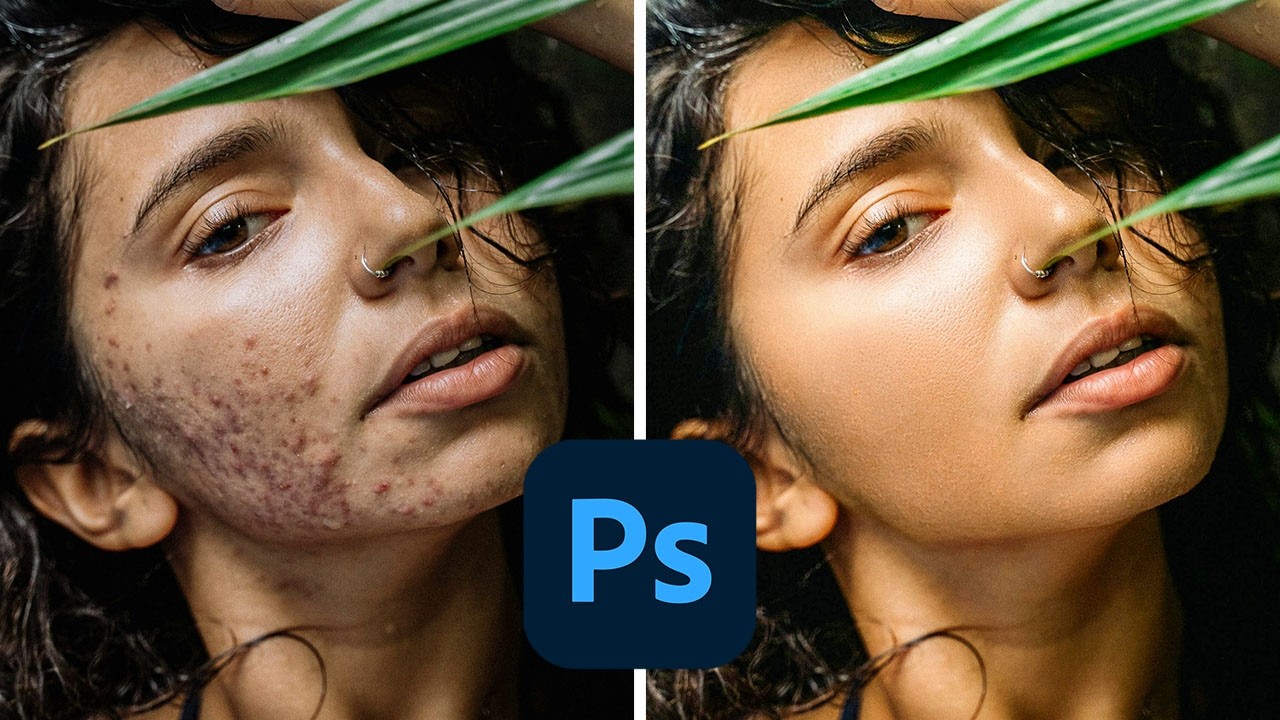
How to Smooth Skin in Photoshop

In today’s tutorial, I’m going to teach you how to smooth skin in Photoshop. We’ll start with a basic image and transform it into a beautifully retouched photo using a really cool fast action. Ready to dive in? Let’s go step-by-step so you can follow along! Download the Resources To fully benefit from this tutorial, make sure you download the resources and the action provided. Click the link below, input your email address, and download the images and the action file.

Photoshop Beginner Tutorials

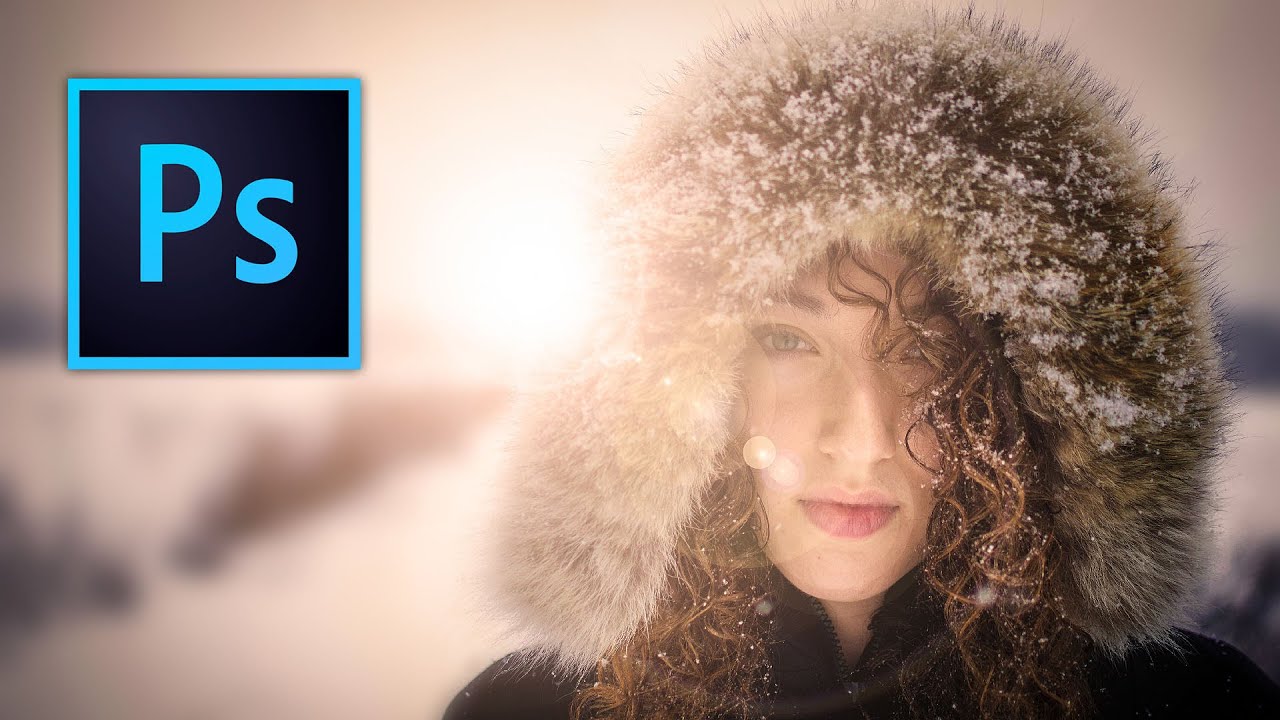
How to use Lens Flares in Photoshop

In this tutorial, I’m going to show you how to use lens flares in Photoshop to create interesting lighting and drama in your images. We’ve all seen poorly used lens flares, but there is a nice way to use them in subtle and natural-looking ways. We’ll explore how to use these techniques on both a portrait and an urban landscape. First Download the Free Source Files You can follow along by downloading the sample files here.

Photoshop Beginner Tutorials

How to add Shadows in Photoshop Tutorial

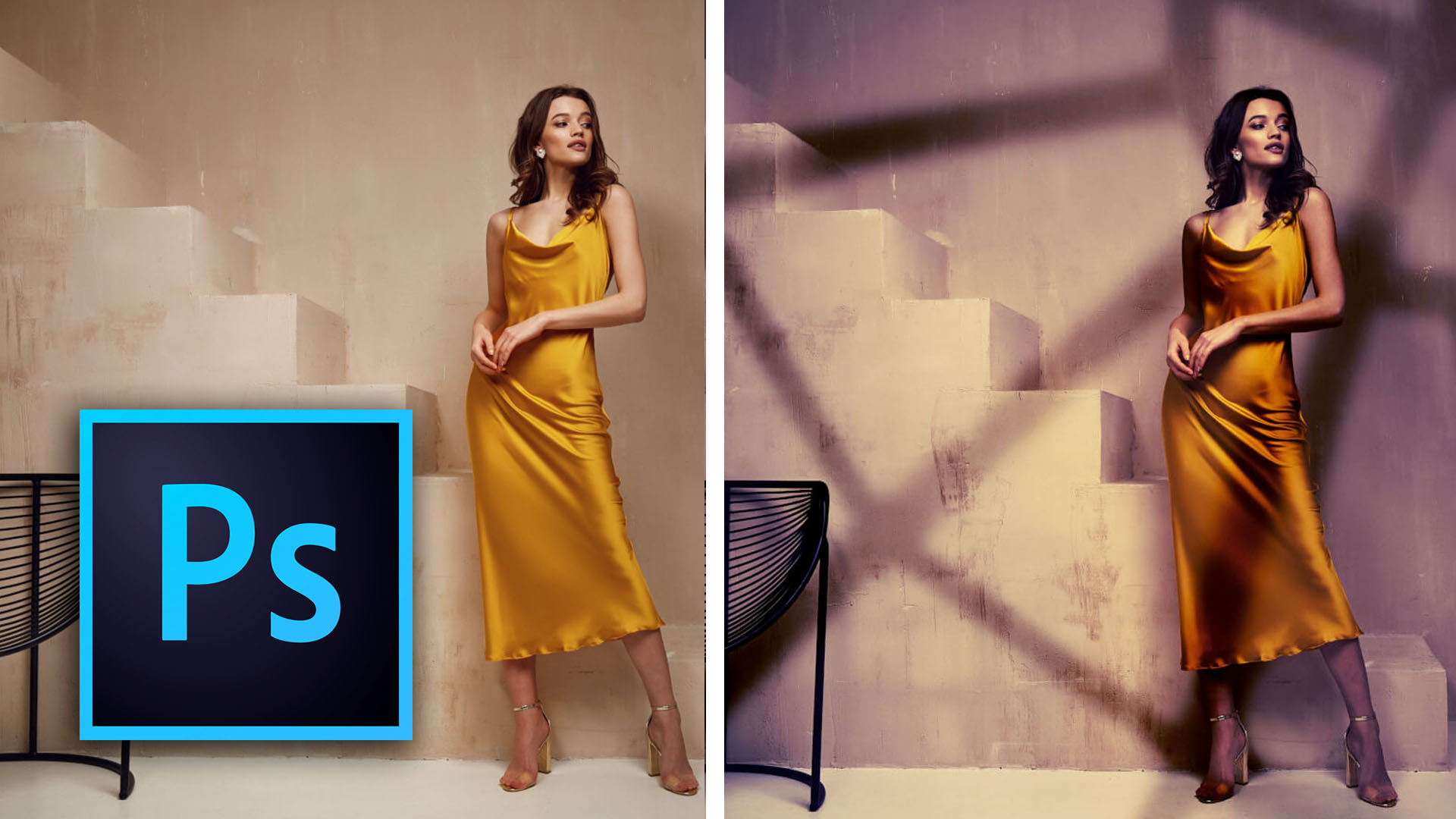
In this tutorial, I’m going to show you how to add shadows in Photoshop and how to manipulate shadows to match the light source, angle, perspective, blur, and opacity. It’s pretty simple, but it looks pretty cool. To get started, Download the source files to follow along with this tutorial. Get the source files Overlaying the Sky in Photoshop Open the road.jpeg and sky.jpeg files in Photoshop. With the Move tool, drag the sky image over to the road image file.

Photoshop Beginner Tutorials

Dramatic Lighting in Photoshop: A Step-by-Step Guide

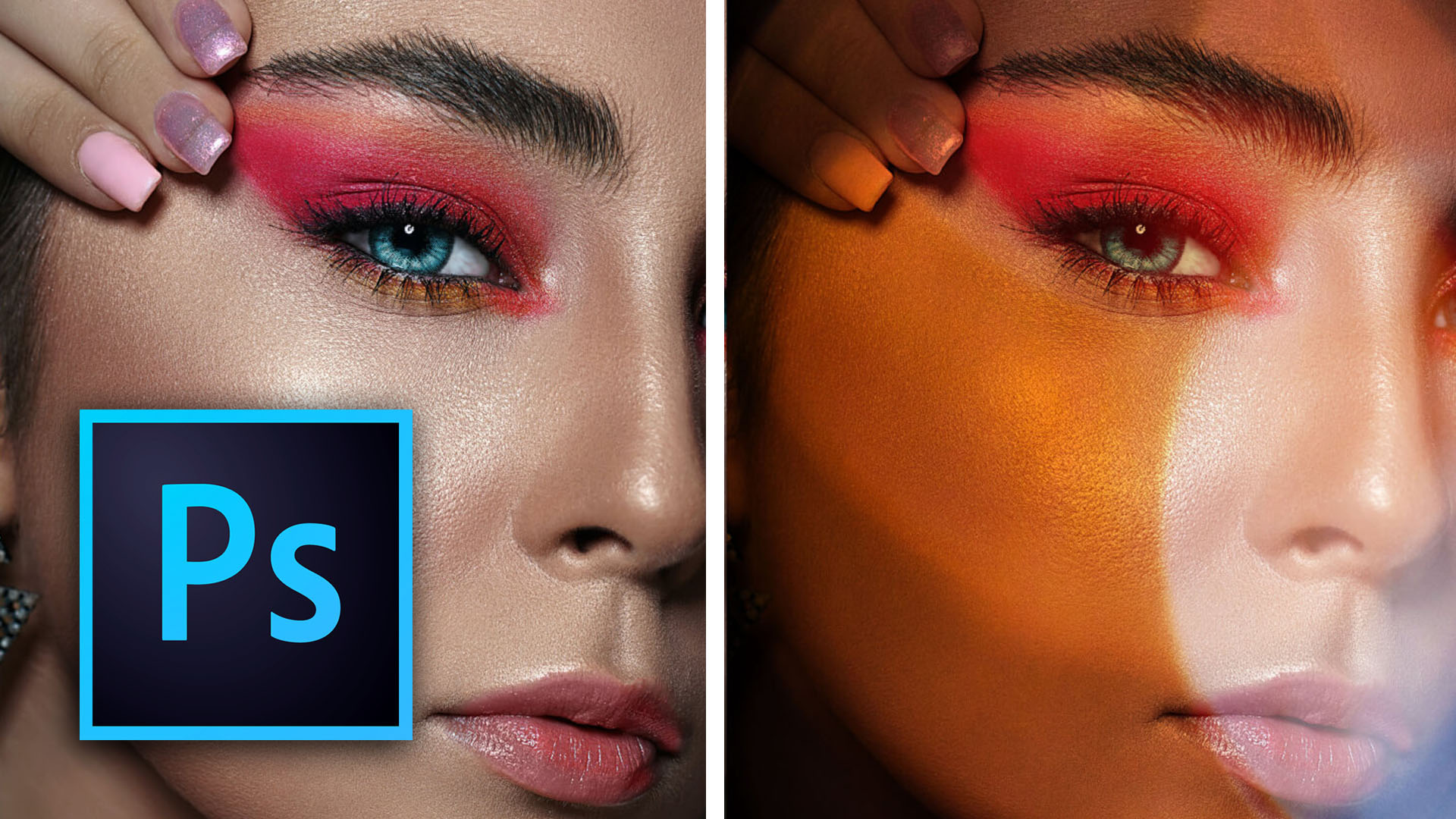
Learn how to add drama to any picture using Photoshop In this tutorial, you will learn how to create dramatic lighting in Photoshop to give your images a completely new look. This technique involves adding light to a darkened image, simulating windows, lens flares, and manipulating the channels to create selections. First Download the Free Source Files You can follow along by downloading the sample file here. You can also watch the video by clicking here.

Photoshop Beginner Tutorials

How to Change the Color of Anything in Photoshop

Learn how to change the Color of Anything in Photoshop In this tutorial, we will be covering how to change the color of anything in Photoshop using a step-by-step process. We will start with a photograph, and by the end of the tutorial, you will learn how to transform it into two different color versions. So, let’s dive in! First Download the Free Source Files To follow along with this tutorial, download the images by using the link below.

Photoshop Beginner Tutorials

How to create a Double Exposure in Photoshop

Overview In this tutorial, you’ll learn how to create a double exposure effect in Photoshop using two images – a portrait and a nature scene. After following these steps, you’ll get a great final result that looks like this: By combining the below Portrait image with a Landscape image into a double exposure. This is the Landscape image we are going to use. To get started download the image files below so you can follow along.

Photoshop Beginner Tutorials

How to use Photoshop generative fill and AI

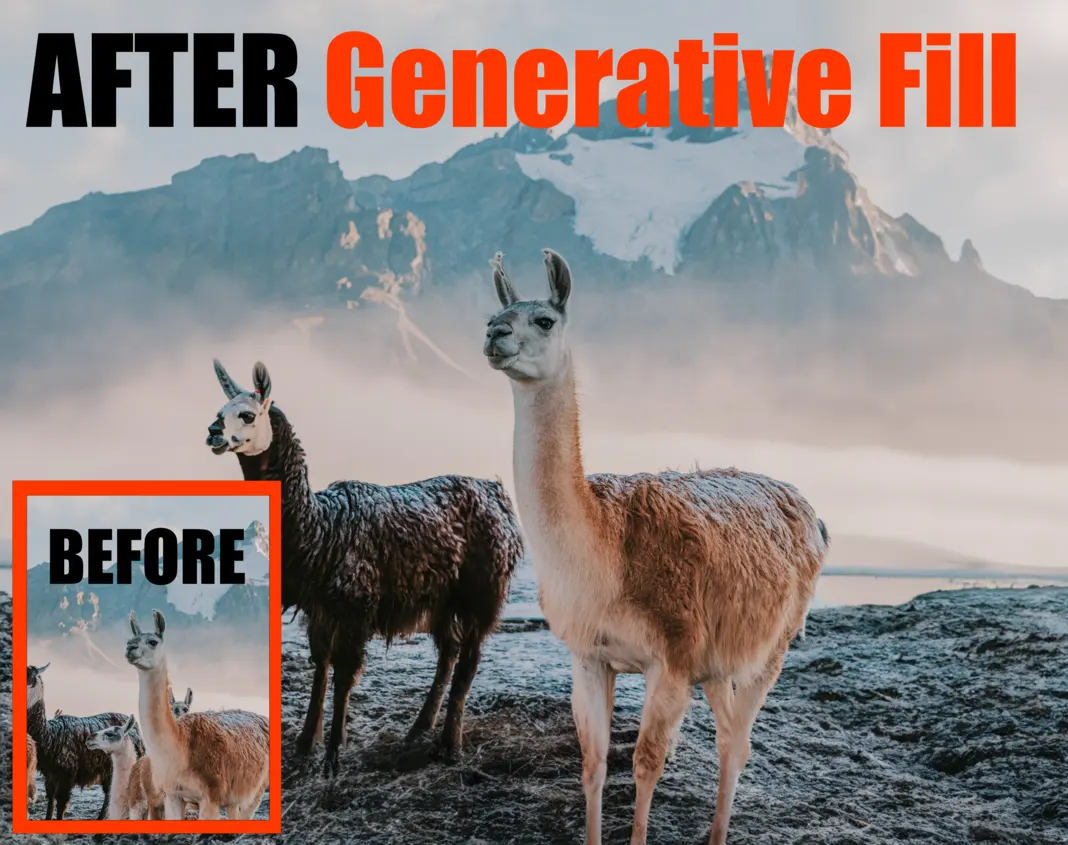
Introduction to Photoshop generative fill and AI If you’re a Photoshop user, then you’re probably always on the lookout for new features and ways to improve your workflow. In this article, I am going to show you how to use Photoshop generative fill so you can see how this can speed up your workflow. Generative fill is a new feature in Adobe Photoshop CC that allows you to quickly select an area and then use a text prompt to change what you have selected.

Photoshop Beginner Tutorials

Select Literally Anything in Photoshop

Photoshop Beginner Tutorial: Select Literally Anything in Photoshop with** One Click** My name is Christina Sherk and I am a professional retoucher, Photoshop educator, and portrait photographer. Today, I am going to share with you an unbelievable tip that will change the way you work in Photoshop forever — regardless of if you are a portrait photographer, landscape photographer, or anything else. This trick is that great! This tip will allow you to save so much time by enabling you to select literally ANYTHING in Photoshop with just ONE CLICK.

Photoshop Beginner Tutorials

How To Use Overlays in Photoshop – Part 1

In this Photoshop tutorial, I will teach you how to use overlays in Photoshop. We’re going to build 4 Photoshop projects, starting with a very simple and easy composite using just one overlay and building toward more and more stunning effects with each subsequent project. Download Tutorial Files This post has been adapted from the YouTube tutorial found here. In this tutorial, I’m going to teach you how to use overlays in Photoshop, starting with a pretty simple project.

Photoshop Beginner Tutorials

How To Use Overlays in Photoshop – Part 2

In Part 2 of this Photoshop tutorial, I will teach you how to use multiple overlays in Photoshop. This post has been adapted from the YouTube tutorial found here. Download Tutorial Files Part 2. Using multiple overlays In the second project, we’re going to introduce multiple overlays. You can see the before and after here: See before (on the left) and after (on the right) below: Quite spectacular, right? This effect is actually really simple as well, just like the first project.

Photoshop Beginner Tutorials

How To Use Overlays in Photoshop – Part 3

In Part 3 of this Photoshop tutorial, I will teach you how to use overlays in Photoshop including neural filters and displacement maps. This post has been adapted from the YouTube tutorial found here. Download Tutorial Files Project 3: Using neural filters and displacement maps Project 3 is really special. You can see the before image here, which is a great photo but pretty flat: and the after image here, which has a lot of depth added by shadows and lights: